Blog
DST Embroidery Files Explained: Creating, Converting, and Using Them

DST Embroidery Files Explained: Creating
Ask ten embroiderers what confused them most when they started and at least six will say the same thing: the .dst file. It lands on your desktop, you double-click it, and you get a grey squiggle. Or nothing. Fair enough, it looks broken. It isn’t.
A DST file doesn’t hold a picture of your design. It holds a sequence of orders for the machine. Go here, stitch, go there, cut the thread, swap colors. That’s the whole file, more or less.
What DST Actually Stands For
Data Stitch Tajima. Tajima builds industrial embroidery machines, and years ago their format spread so widely that other brands simply started reading it too. Today, if you run a commercial machine, DST is probably the format it likes best.
Because the file is only a list of moves, the machine has zero idea what it’s sewing. A lion, a monogram, a bakery logo, all the same to it. This is also why digital embroidery lives or dies on the file. Garbage instructions in, garbage stitching out.
What’s Not Inside It
People get caught here. DST doesn’t store thread colors. It knows a color change happens, but whether the next thread is red or navy? No clue. It also forgets the shapes you drew, so there are no fills or satin columns to tweak afterwards, and it has no notes on fabric or stabilizer.
So if your software opens it in random colors, relax, that’s guesswork. Someone sets the real threads at the machine, or follows the color chart that should have come with the design. No chart? Ask for one.
A Peek Under the Hood
The first 512 bytes are a header with the design name, stitch count, color changes and size. Then comes a long string of tiny movements, three bytes each. One command can only move the needle roughly 12 mm. Anything longer gets chopped into pieces.
Different programs chop things slightly differently. That’s why one DST sometimes looks a bit off in a second program even though nothing is wrong with it.
Where the File Comes From
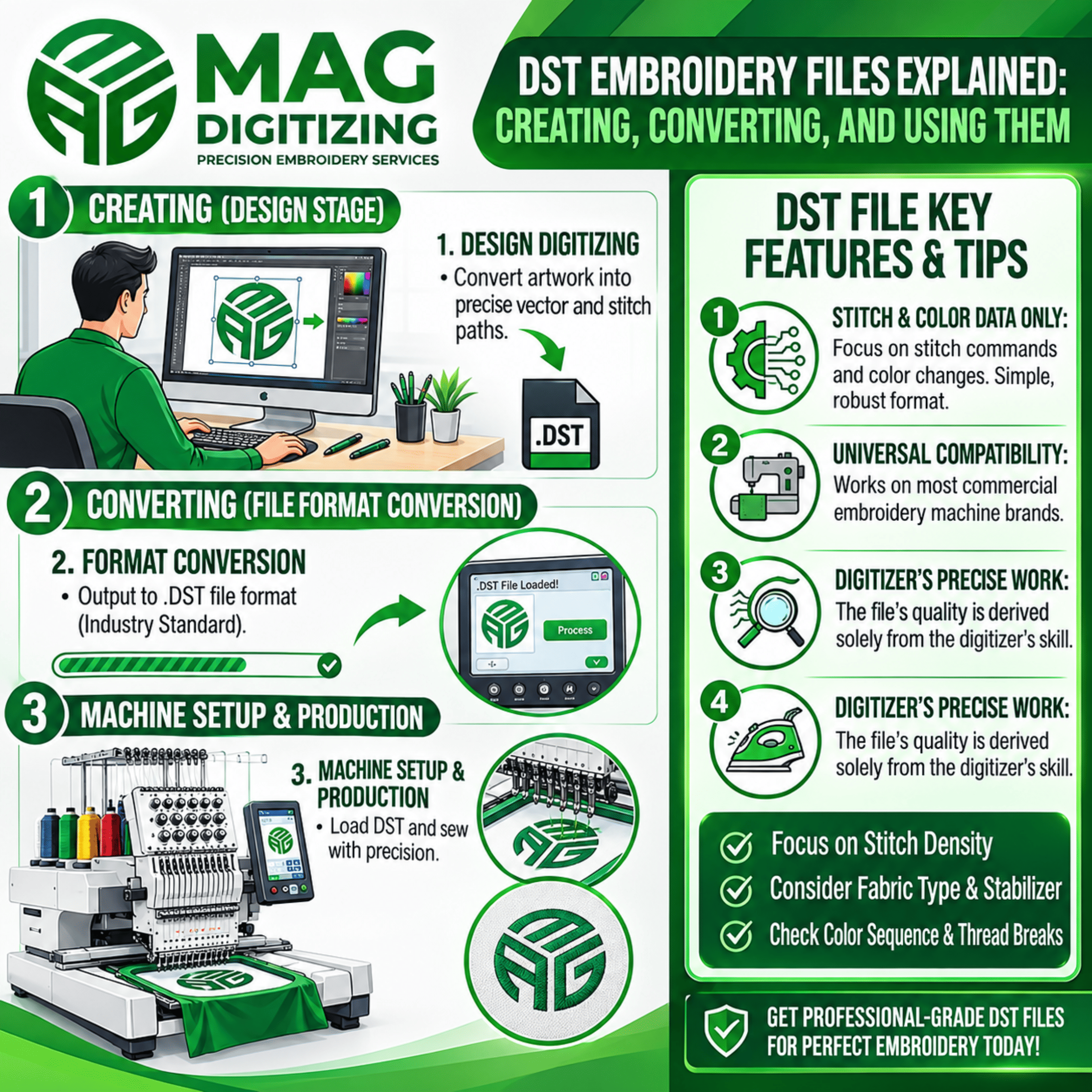
Digitizing. A person turns artwork into stitches, and it’s real craft. They pick satin or fill for each area, set direction and density, add underlay so the fabric doesn’t fight back, and decide what sews first. The result is exported as DST.
Wilcom, Hatch, Pulse and Embrilliance are the usual tools. Ink/Stitch is a free Inkscape add-on that exports DST too. It’s rougher around the edges, but it’s a fine way to learn without spending anything.
One thing I’d tattoo on every beginner’s hand: saving as DST fixes nothing. Bad digitizing gives you puckering, snapped thread and tiny letters that look like smudges, in any format.
Buy It, or Learn It?
Learning takes months. Small text, caps and stretchy knits will humble you. If your day is better spent running machines and chasing customers, Embroidery Digitizing Services are the sensible shortcut. You send the logo, you get a stitch file back.
Mag Digitizing is one of the companies doing this. You tell them the garment and size, and you get a file you can load straight onto the machine. (Add your real details here: turnaround, formats, the kind of jobs you handle. Readers want that more than anything else.)
Whoever you pick, ask for four things. The DST, a color chart, a preview image and the recommended size. And always say what fabric it’s for, because a file that’s perfect on a flat cotton tee can fall apart on a structured cap.
Getting Your Artwork Ready
When you digitize file for embroidery, the original matters. Vector files like AI, EPS and SVG are ideal. A big, sharp PNG or JPG is fine. A blurry little screenshot is not, because the digitizer has to guess where the edges are and guesses show up as wobbly stitches.
Also tell them what’s essential. If a tagline is too small to sew cleanly, a good digitizer will say so and suggest making it bigger or dropping it.
Photos, Then?
Everyone asks. Can you digitize photos for embroidery? Yes, with a catch. Thread can’t copy fine gradients, so the photo gets simplified first. Fewer colors, cleaner shapes, shading made from stitch angles. Clear lighting and a plain background work best. A crowded group photo shot on a phone in bad light? Expect disappointment.
Say this to the customer early, so a stitched portrait doesn’t surprise them.
Ordering Online
Nobody has to hunt down a local digitizer anymore. With online embroidery digitizing you upload the logo, mention fabric and size, and the file returns. Handy when orders come in waves.
You can also browse embroidery designs online and buy ready-made ones. Check the stitch count first. A very dense design will cause trouble on lighter fabric.
And once you own a few digitized embroidery designs, the same file can go on caps, polos, jackets and bags. That’s where the cost starts coming back.
Converting Between Formats
Home machines mostly don’t take DST. Brother and Baby Lock like PES. Janome uses JEF. Singer, XXX. Commercial machines such as Tajima and Barudan read DST directly.
You can convert in embroidery software (Save As, pick a format, the safest route), with an online converter (fine for simple stuff, but trims and jumps can get mangled, so check), or on some machines straight from the screen, though options are limited.
Going from DST to a home format is easy. Going backwards is ugly, because DST already threw away the colors and objects. So keep your original editable file, whatever program made it. That’s the master. Everything else is a copy.
Things That Go Wrong
Grey or one-color design? Normal. No thread data in DST.
Wrong size on the machine? Check the dimensions in the header, and make sure your software didn’t rescale it on import.
Loads of jump stitches or loose threads? Trims probably didn’t convert. Re-export with trims on, or clean up by hand.
Machine won’t read it? Look at the file name. Long names and odd characters cause trouble. Short, letters and numbers. Also check how the USB drive is formatted, since some machines are fussy.
Looks fine on screen, sews badly? Rarely the format. Usually density that’s too high or underlay that’s missing. Back to digitizing.
Running It on the Machine
Copy to USB, load it, check the stitch count and size. Assign thread colors to each color stop. Hoop the garment with the right stabilizer. Then sew a test on scrap fabric that matches the real thing.
Please don’t skip the test. It costs a few minutes and a bit of thread. Skipping it can cost you a finished polo.
Keeping Things Tidy
Original files in one folder, DST copies in another. For each design, a short note: fabric, size, anything you changed after testing. Boring, yes. But when a customer reorders six months later, you’ll be glad you did it.
Wrapping Up
A DST file is a set of instructions. No colors, no easy edits, no rescue for weak digitizing. But nearly every commercial machine reads it, and that’s why it’s still everywhere. Keep your originals, name files clearly, test every new design. Do that and most DST headaches never show up.